
Your choice of power plans in Windows 10 is often restricted. However, you can restore those power plan options and improve system performance if you know the proper codes.
Following default and recommended settings in Microsoft Windows 10, your system will attempt to balance power and performance to what it considers to be optimum levels. For many users, operating under normal conditions, this balancing act works well and should be left as is. However, sometimes you may want to ignore balancing protocols and get as much power and performance from your system as is possible.
The default and recommended Balanced power plan is one of several pre-configured power plans available in Windows 10. Unfortunately, the ability to choose one of the other power plans is often restricted depending on your PC. Laptops, for example, may only offer users the balanced plan option. However, for those of you looking to maximize PC performance, there is an Ultimate power plan available, but it is hidden behind a secret code.
This how-to tutorial shows you how to restore and implement the Ultimate power plan in Windows 10 to increase the performance of your PC when you need it.
Restore the ultimate power plan in Windows 10
To understand what Windows 10 power plans we are talking about, click the Start button, select Settings (gear icon), and then select System. Scroll down the left-hand navigation bar and select Power & Sleep. Scroll down the right-hand page of that screen and click the Additional power settings link to reveal the screen shown in Figure A.
Figure A
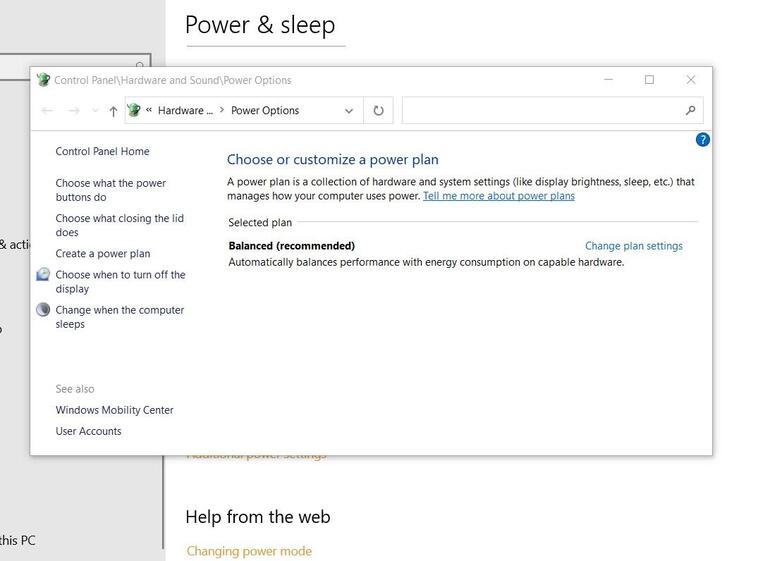
As you can see, the only power plan option available on my new laptop PC is Balanced.
To add the Ultimate power plan option, right-click the Start button and select either the Windows command prompt (Admin) or Windows PowerShell (Admin), if enabled.
Type or copy and paste this command into the prompt as shown in Figure B and then press the Enter key.
Ultimate power plan:
powercfg -duplicatescheme e9a42b02-d5df-448d-aa00-03f14749eb61
Figure B
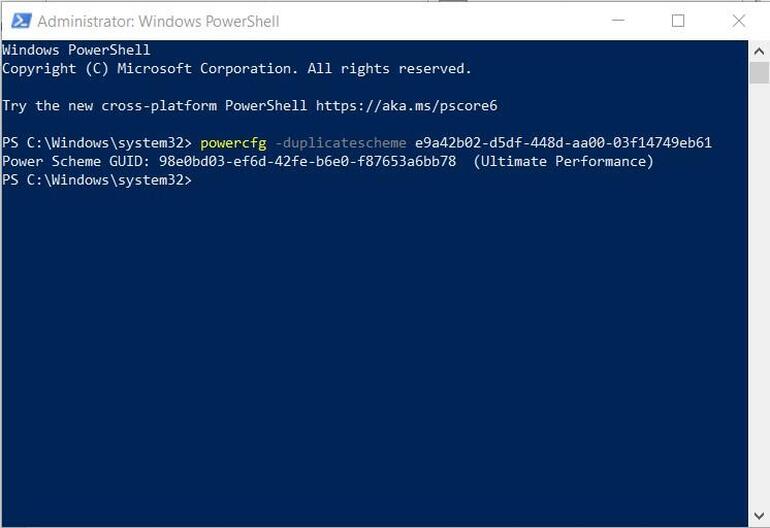
While you have the command prompt open, you may want to add the rest of the power plan options:
High performance power plan:
powercfg -duplicatescheme 8c5e7fda-e8bf-4a96-9a85-a6e23a8c635c
Power saver power plan:
powercfg -duplicatescheme a1841308-3541-4fab-bc81-f71556f20b4a
Close the command prompt when you are finished.
Now, when you go back to the Power Options Control Panel (Figure A), you can click the down arrow next to Show additional options to see other power plans, as shown in Figure C.
Figure C
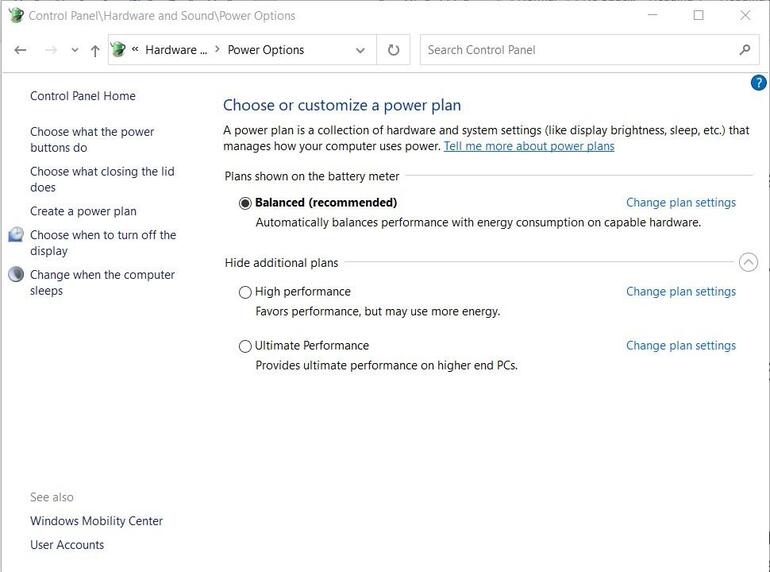
Be careful when choosing to run under the Ultimate power plan, particularly if you are operating a laptop on its battery. The normal steps Windows 10 takes to save a battery’s charge are going to be off completely. A battery that normally lasts four hours may barely make it to two hours.
The Ultimate power plan is best used for applications making extensive calculations or read/write operations. Activities like rendering 3D images, editing media files, performing complex calculations in an Excel worksheet, queries to databases, etc., will benefit from the dedicated power resources of the Ultimate power plan. When performing more mundane tasks on your PC like answering email, the Ultimate power plan will waste power.
Also note, while the Ultimate power plan may help get a few more FPS during game play, generally, the plan will not help the performance of games significantly. That is because most games bypass power plan settings to increase performance already. In other words, changing your power plan to Ultimate for games is often redundant—but it does not hurt to try.


